

If you have a podcast and already publish it on Apple Podcasts and Spotify, the next step to reach more listeners is getting it on YouTube Music and Google. To submit podcast to YouTube Music, you don’t need any coding, and YouTube doesn’t charge a separate fee. All you need is an active RSS feed and a few minutes in YouTube Studio. In this guide, we walk you through the process from start to finish, briefly and step by step, so you can get your show there without any hassle. If you’re not yet familiar with the other platforms in this space, first read the article top podcast platforms, and then let’s get YouTube Music set up together.
Quick Overview: Submit Your Podcast to YouTube Music
| Goal | Get your podcast on YouTube Music and YouTube by connecting your RSS feed |
| Where to do it | YouTube Studio: Create > New podcast > Submit RSS feed |
| What you need | A public RSS feed, the owner email registered in the feed, show artwork, at least one published episode, and a Google account with YouTube Studio access |
| Cost | No separate fee from YouTube (your podcast hosting costs still apply) |
| How it works | YouTube turns each episode into a static-image video using your show artwork and audio |
| Main steps | Copy RSS feed > Sign in to YouTube Studio > Accept terms > Verify ownership with the emailed code > Select episodes > Wait for upload > Publish |
| Important tip | Edit titles, descriptions, and cover art in your hosting platform, not in YouTube Studio |
| Common issues | Missing verification email, delayed or missing episodes, rejected artwork |
| Google Podcasts | Shut down; submitting your RSS feed to YouTube Music is the alternative |
What Does Submitting a Podcast to YouTube Music Actually Mean?
When you submit your podcast to YouTube Music, you are really connecting your RSS feed to YouTube. Based on it, YouTube creates a video for each episode and places it on your channel. If you haven’t recorded any video, a still image of your show artwork (cover art) is displayed along with the episode’s audio. This kind of video is called a static-image video. Listeners can find these same episodes both on YouTube and in the YouTube Music app.
An important point is that YouTube reads your feed regularly. So always edit your title, description, and cover in your podcast hosting platform, not inside YouTube Studio. Otherwise, later edits to the feed for that episode will be blocked.
What You Need Before You Submit
Before you start, make sure these prerequisites are ready. In practice, this list is the YouTube Music podcast requirements.
Your RSS Feed & Owner Email
Your RSS feed URL must be public and free of access restrictions. The owner’s email address must also be registered inside the feed, because YouTube sends the verification code to that same email. If you don’t know which email is registered in the feed, ask your hosting support.
Show Artwork
Your cover must meet general podcast standards and be set on the feed. A low-quality or unclear image makes the generated videos look weak and fail to attract listeners as much as they should.
At Least One Published Episode
Your feed must have at least one published episode. You also need access to your Google account and YouTube Studio. If your account doesn’t have access to advanced features, YouTube may ask you for identity verification.
How to Submit Your Podcast to YouTube Music (Step by Step)
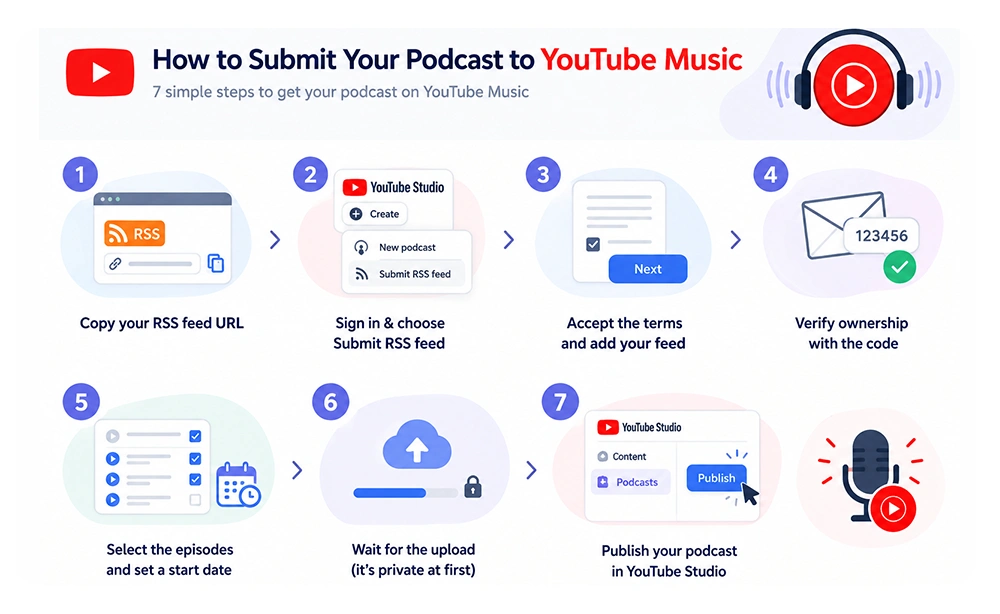
Following the steps below will take you straight to the answer to how to submit a podcast to YouTube Music. First read through the steps once, then carry them out one by one:
- Copy your RSS feed URL. Log in to your podcast hosting platform panel and copy the public feed address of your podcast.
- Sign in to YouTube Studio. Sign in with the same Google account you want your podcast connected to. Then click Create, select New podcast, and then choose Submit RSS feed.
- Accept the terms. Read the RSS Ingestion Tool Terms of Service, confirm them, and click Next. At this stage, you can complete submit RSS feed to YouTube by pasting the feed address into the field provided, then click Next again.
- Verify ownership. Click Send code. YouTube sends a verification code to the email registered in the RSS feed. Enter the code and click Verify.
- Select the episodes. Specify which episodes should be transferred to YouTube. To avoid duplicate episodes, set the start date after the last episode you already have on YouTube.
- Wait for the upload. The episodes you selected are first uploaded as private. YouTube recommends waiting until all the episodes have been uploaded and only then publishing.
- Publish the podcast. In YouTube Studio, go to Content and then Podcasts. In the Video count column, click the Publish button. This button appears only after the episodes have finished uploading.
By going through these steps, the process of add podcast to YouTube Music and upload podcast to YouTube Music is complete. After that, you only need to publish a new episode on your hosting, and it will reach your channel automatically.
After You Submit: Publish, Check & Share Your Show
After publishing, open the YouTube Music app and search for your show’s name. Check that the title, cover, and episode order are correct. Fix any episode that needs changes in your hosting.
After that, you can create a podcast playlist to better showcase your important episodes. Also place your show’s link on your social media and website. If YouTube alone isn’t enough for you, the guides upload a podcast on Apple Podcasts and How to start a podcast on Spotify also explain how to publish your podcast on the other platforms.
What Happened to Google Podcasts? How Google Finds Your Show Now
If you’re looking for a way to submit podcast to Google, you should know that there is no longer a standalone app with that name. Google Podcasts has been shut down. The best Google Podcasts alternative for listeners is YouTube Music itself, and for producers it’s the same RSS feed route in YouTube Studio.
Getting Found on Google Search
Being on YouTube Music also helps your show get discovered in Google Search, but it isn’t the only factor. Episode titles and descriptions, a dedicated page for each episode on your website, and following podcast SEO principles also have an effect.
Common Submission Problems and How to Fix Them
If you run into problems during the process of submit podcast to YouTube Music, the cause is most likely one of the following:
Verification Email Never Arrived
First check your spam folder. Then make sure the email registered in the feed is the one you expect. If the YouTube Studio page has been open for a long time, refresh it and click Send code again.
Episodes Missing or Delayed
YouTube reads the feed periodically, and changes may appear with a delay. Wait up to a day, then check that every episode has a valid audio enclosure and that the feed is public.
Artwork Rejected
If there’s a problem with the cover, replace the file in your podcast hosting platform with one that has standard dimensions and format. Don’t make the change inside YouTube Studio, and wait for the feed to be read again. Finally, after publishing your content, you can also use podcast analytics metrics to measure the results of your work.
Audio-Only vs. Video Podcasts on YouTube
Episodes submitted through an RSS feed are audio-only and are displayed with a static-image video. However, YouTube performs better with visual content. Having visual content is useful for creating short clips, and publishing your content on video podcast platforms allows you to get more engagement.
Now that you’ve reached the answer to the question How to Submit Your Podcast to YouTube Music, if you want your work to look more professional, it’s worth knowing that Studio 321 is one of the active companies in the field of video podcast production in Dubai, and it provides this service with experienced staff and professional equipment.
Conclusion
We hope that by following the points above and going through the steps, you can submit podcast to YouTube Music easily and in the shortest possible time. If you want to take your podcast beyond audio distribution and record a professional video, Studio 321, a professional dubai podcast studio, is by your side.

Frequently Asked Questions
Can I submit my podcast to YouTube Music without a YouTube channel?
To submit a podcast, you must have access to YouTube Studio, and this section depends on a YouTube account and channel. So without a channel, you cannot submit an RSS feed. If you don’t have a channel, create one first and make sure your account has access to advanced features.
How long does it take for my podcast to appear on YouTube Music?
No exact time is guaranteed, because it depends on the number of episodes and when YouTube reads the feed. Episodes are first uploaded as private. Wait until all the episodes have been uploaded, then click the Publish button in the Content and Podcasts section. If you see any problem, read the troubleshooting section.
Is submitting a podcast to YouTube Music free?
Submitting the feed through YouTube Studio has no separate fee from YouTube. However, the cost of the podcast hosting platform that holds your feed still applies. Before submitting, check the terms of your hosting plan.
Can I submit my podcast directly to Google now that Google Podcasts is gone?
No, there is no longer a standalone way to submit a podcast directly to Google Podcasts, because that service has been shut down. The alternative route is submitting your RSS feed to YouTube Music through YouTube Studio. Your show can also be found through Google Search.
Do I need video to put my podcast on YouTube Music?
No. If you only have an audio RSS feed, YouTube uses your show artwork to create a static-image video and plays the episode’s audio over it. Real video isn’t required, but it can increase listener appeal and retention.