
Many top podcast platforms assign you a feed address, and sometimes you need this feed, but many beginners don’t know exactly what it is or where to find it. The good news is that you don’t need any coding for this. In this article, we cover podcast RSS feed explained in simple language and without any technical prerequisites, so you can access it in the shortest possible time.
What Is a Podcast RSS Feed?
Short answer: A podcast feed is an XML file that always keeps the show’s details and the list of episodes up to date. Podcast apps check this file regularly and find the new episode on their own. The audio file itself is not inside the feed; the feed only carries the episode’s information and the address of the file.
RSS in Plain English
To answer the question what is a podcast RSS feed, imagine a digital bulletin board. Every time you publish a new episode, a new sheet is pinned to the board, and apps check it every so often. The board itself doesn’t play any sound; it only says what has been published and where its file is.
For this reason, the first point of any podcast RSS feed explained aimed at beginners is that you introduce your podcast to an app only once. After that, every episode added to the feed reaches listeners automatically.
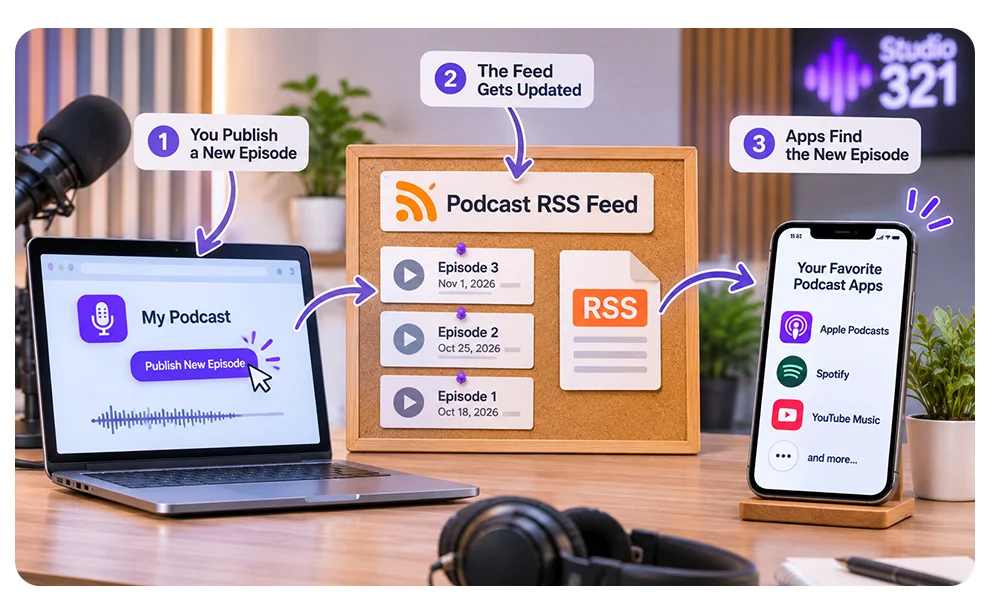
How does a feed get from the host to the listener?
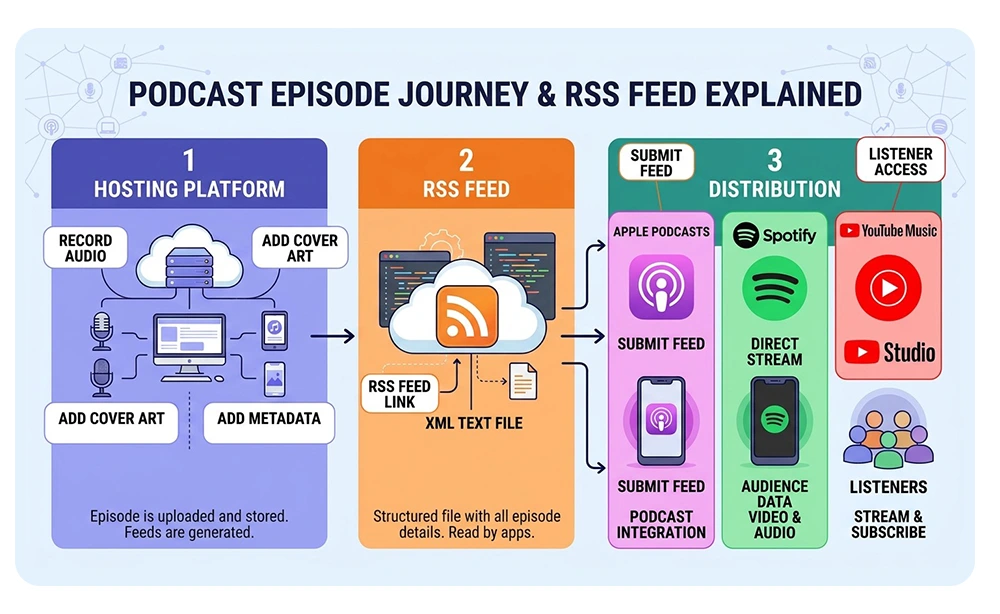
The host stores the file, the feed introduces it, and the app plays it. To understand how does a podcast RSS feed work, you need to separate three things: the audio file, the host, and the feed.
Feed, Audio File and Hosting Platform: Three Different Things
- The audio file (usually an MP3 file) is the episode itself.
- The host is a service that stores this file and creates the feed for you.
- The feed is only an informational file that points to the details of the audio file.
Confusing these three is the most common confusion among beginners, and for podcast RSS feed explained you need to know the difference between these three in practice.
What Happens When You Publish a New Episode
When you publish a new episode, these things usually happen:
- You upload the audio file to the host and enter the episode’s title and description.
- The host adds a new item to your feed.
- Apps check the feed and see the new item.
- The app plays or downloads the audio file from the address inside the feed.
One important point: the feed delivers episodes to the audience, but download stats must be taken from the host, which we mentioned in the podcast analytics metrics article.
What is inside the feed?
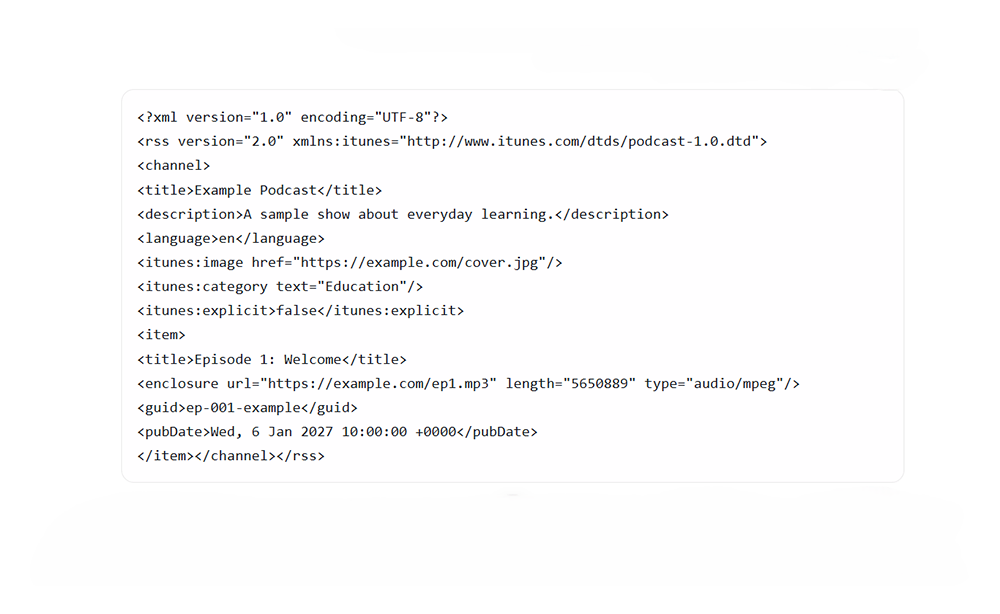
A feed has two levels of information: information about the whole show and information about each episode, and all of this is written based on RSS 2.0.
Show-Level Tags
Show-level information includes the podcast name, show description, language, category, cover image, and the content label.
Episode-Level Tags
Episode-level information includes the title, description, publish date, episode identifier, and the address of the audio file. The collection of this information is called episode metadata.
You need to know two terms from the start. The tag that gives the audio file’s address to the app is called enclosure. The unique identifier of each episode is like its national ID number: apps use it to tell which episode is which.
| Tag | What it does | Required by Apple Podcasts? |
| title (show) | The podcast’s name; Apple also uses it in search | Required |
| description (show) | The show’s description for potential listeners | Required |
| itunes:image (show) | The address of the show’s cover image | Required |
| language | The show’s language; an invalid code causes the feed to be rejected | Required |
| itunes:category | The show’s topic category | Required |
| itunes:explicit (show) | Specifies whether the content is explicit or not | Required |
| title (episode) | The episode’s title | Required |
| enclosure | The address, size, and type of the episode’s audio file | Required |
| guid | The unique, always-constant identifier of the episode | Required |
| pubDate | The episode’s publish date and time | Recommended |
| itunes:new-feed-url | Announces the feed’s new address when you change hosts | Situational |
Optional Podcasting 2.0 Tags
Podcasting 2.0 is a set of newer, optional tags, such as the ones for episode transcripts and chapters, and you don’t need them to get started.
Do you need to create the feed yourself?
In most cases, no; leave creating and updating the feed to the host.
Using a Podcast Hosting Platform
If you’re looking for how to create a podcast RSS feed, the answer is usually this: when you upload an episode to the host, the feed is created automatically. This is the first recommendation of any podcast RSS feed explained for beginners. Choosing a host depends on your needs and budget.
Why Your WordPress Blog Feed Is Not a Podcast Feed
A common mistake is using the blog feed. A WordPress site by default has a feed for all blog posts, not just podcast episodes. A podcast needs a separate feed that contains only the episodes.
Writing an RSS Feed by Hand
Writing a feed by hand is technically possible too, but it is not recommended for beginners, because one small structural mistake can cause it to be rejected.
Where do we find the feed address?
Usually in a few clicks, either in the host’s dashboard or by looking up a show that is already published.
In Your Hosting Dashboard
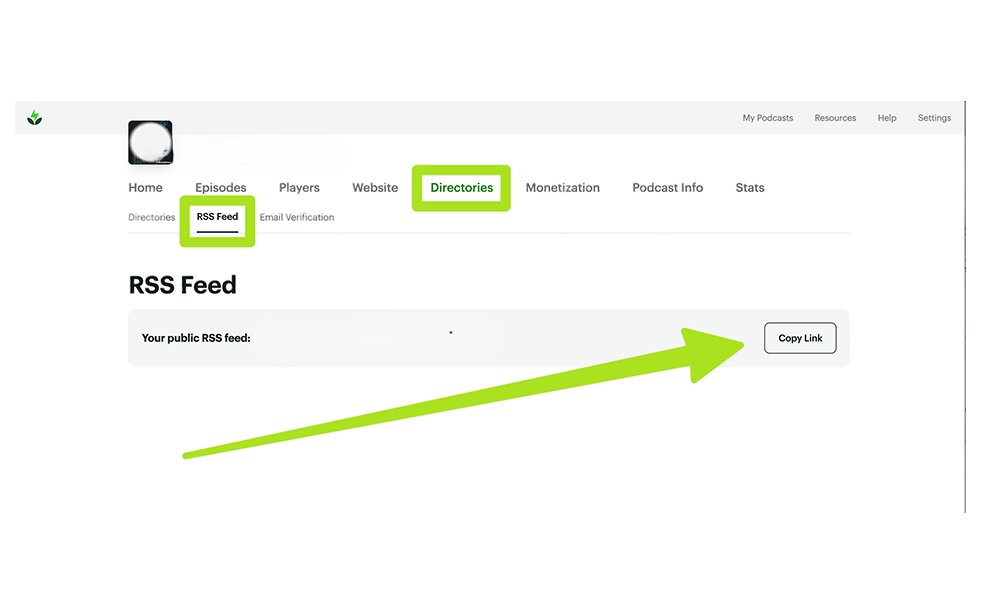
For how to find your podcast RSS feed, just open a section like Distribution, Settings, or RSS Feed. The address is written there, and there is usually a copy button next to it. The exact name of the menu differs from host to host, so look for the one you see in the interface.
The complete address, called the podcast RSS feed URL, is what apps ask you for. Copy it in full and without extra spaces, and open it once in the browser too to make sure it is correct.
Looking Up a Published Show’s Feed URL
If a show is already published and listed in a public podcast directory, you can usually look up its feed address there. This is also a handy way to double-check the address of your own show.
How do we check and troubleshoot the feed?
Before submitting to any platform, check the feed’s health.
Read the Feed in Your Browser
First open the address in the browser: if you see a readable file with your episodes, access is working, and if an error page appears, the problem is with the address or the host.
Run It Through a Feed Validator
After that, a podcast RSS feed validator checks the feed’s structure and shows the errors. W3C Feed Validation Service is a well-known example, and there are similar tools too. Tools differ in details, so match any serious error against the official documentation of the destination platform. Every item checked in a practical podcast RSS feed explained follows this same path.
The Most Common Feed Errors and Fixes
| Symptom | Likely cause | Fix |
| The platform says the feed is invalid | One of the required tags is missing or there is a structural error | Check the feed in a validator and correct the reported item |
| The cover image doesn’t show | The image’s address or format has a problem | Open the image’s address in the browser and compare it with the specifications stated in the official documentation |
| The new episode doesn’t appear | A delay in the app’s update or an error in the new item | Look at the new item in the feed and then wait a little |
One feed, multiple apps
You don’t create a separate feed for each platform; you introduce the same single feed to each one. This principle must be made clear in any serious podcast RSS feed explained, because there is no need to duplicate the feed. The registration steps differ on each platform and are not repeated in this article.
Apple Podcasts
You introduce the feed through Apple’s podcast management tool, and you need to confirm the current name of that tool from the official source. The full steps are in upload a podcast on Apple Podcasts.
Spotify
The same route applies, and its full guide is in how to start a podcast on spotify. Check the current name of its management panel from the official source too.
YouTube Music
Submission is done from YouTube Studio and requires the feed owner’s email. Full guide: submit podcast to YouTube Music.
Other Apps
Some other apps take the feed from a public podcast directory such as Podcast Index.
Don’t lose control of your feed
By following three principles, your feed stays healthy even when you change hosts. This part of podcast RSS feed explained is about your ongoing control over the feed.
Never Change Your Episode GUIDs
Never change the episode identifier. If it changes, apps may treat an old episode as new and show it again.
Redirect Your Old Feed Before Switching Hosts
Redirect the old feed before changing hosts. The old feed should point to the new feed with a 301 redirect, and the itunes:new-feed-url tag also tells apps that the address has changed. Even so, there is no absolute guarantee that all listeners will be transferred; after the move, keep an eye on download numbers for a few weeks.
Know Who Owns the Email and Login Behind Your Feed
The email and account behind the feed should be in your own hands. Platforms usually verify ownership with the email registered in the feed. If that email belongs to a former freelancer or agency, you’ll run into trouble later with ownership verification. Every important change to your podcast RSS feed should be made with your knowledge and control.
From recording to feed: the publishing path
The feed is only the carrier of the finished episode, and the quality of what goes into it starts from the moment of recording. Clean sound and a proper mix determine whether the listener stays after the first minute. In summing up this podcast RSS feed explained, the right path starts from recording, reaches the host, and finally the feed distributes it.
If you’ve just started, our complete guide to starting a podcast in Dubai “How to start a podcast in Dubai“ covers everything from idea to publication. At Studio 321, located in Al Mamzar, episodes are recorded in a professional environment so that a file ready for upload reaches your host; you can reserve your session at the Dubai podcast studio book your session at our Dubai podcast studio.

Frequently asked questions about podcast RSS feed explained
- Do I need to know how to code to use a feed?
No. The host creates the feed for you, and you only enter the show’s and episodes’ information. [If the RSS acronym is written out, verify it with the official source.] - Are a feed and a host the same thing?
No. A feed is a file. A host is a service that stores audio files and creates the feed. - Where do I find the feed address?
Usually in the host’s dashboard, in a section like Distribution or Settings. Details are in section 5. - Do I need a separate feed for each major platform?
No. You have one feed that you introduce to each platform separately. Details are in section 7. - If I change hosts, will I lose my listeners?
If you redirect the old feed properly, the transfer usually goes without major problems, but there is no absolute guarantee. Details are in section 8. - Why does the platform say my feed is invalid?
Common causes: missing required tags, a problem with the cover image, or a structural error. Solutions are in section 6.